Getting Started with the ViroReact and Expo Starter Kit
In this post, we’ll walk through how to get started with ViroReact and build your first AR app using the ViroReact and Expo starter kit.
Prerequisites
Before we dive in, this guide has been made with a few assumptions:
- You’re already familiar with React Native and Expo
- You have a local development environment set up for React Native and Expo
- You have a physical device to hand for testing. This is important as you can’t test apps that use ViroReact on a simulator
Clone/Download The Repo
In order to get started, the first thing you need to do is clone the repo from GitHub. You can do this by using the following command in your terminal:
git clone https://github.com/ReactVision/expo-starter-kit-typescriptAlternatively, you can download a ZIP of the codebase from the GitHub repo.
Installation
With the repo now on your device, open the project in your IDE. The first thing you need to do is open the terminal (ensuring it’s open on the project's directory) and install all packages.
npm installPrebuild
Because ViroReact relies on native dependencies, we now need to run the prebuild command on the project.
Before we run the prebuild command and create our native directories, one thing you will want to do is change the iOS and or Android bundle identifiers. You can do this in the app.json file.
For iOS:
"ios": {
      "supportsTablet": true,
      "bundleIdentifier": "com.anonymous.expo-starter-kit-typescript" //change this
    },
For Android:
"android": {
      "package": "com.anonymous.expostarterkittypescript", //change this
      "adaptiveIcon": {
        "backgroundColor": "#E6F4FE",
        "foregroundImage": "./assets/images/android-icon-foreground.png",
        "backgroundImage": "./assets/images/android-icon-background.png",
        "monochromeImage": "./assets/images/android-icon-monochrome.png"
      },
      "edgeToEdgeEnabled": true,
      "predictiveBackGestureEnabled": false
    },
With our bundle identifiers updated, we can now proceed with prebuild.
npx expo prebuild --cleanRunning The App
You’re now ready to run the app on your device. The quickest way to do this is by using the following Expo commands:
npx expo run:ios //runs the app on iOS

npx expo run:android //runs the app on Android
Alternatively, you can open the project via the native directories.
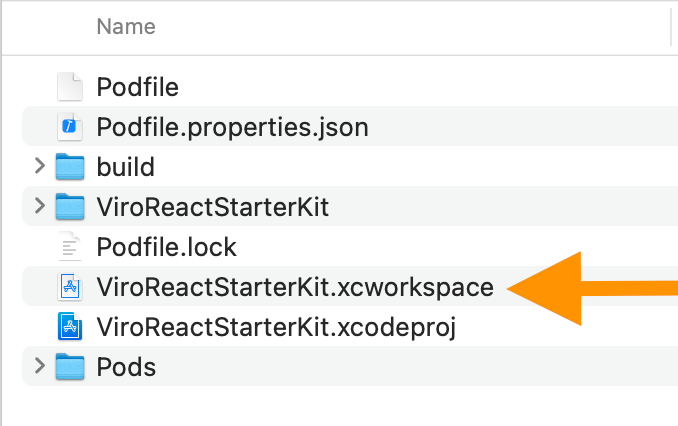
For iOS: open the project’s root folder, navigate to the iOS folder, and open the Xcode workspace file. This will open the app in Xcode, and from there you can build and run the app on your preferred iOS device.
For Android: from within Android Studio, click on open, and then in your file finder navigate the Android folder of the starter kit project on your machine and open that folder in Android Studio.
Conclusion
You’ve now built and run your first AR app with ViroReact and Expo. Hopefully, this is just the start of your journey building with us. While there are some great examples within this starter kit to help familiarise yourself with ViroReact, be sure to read our documentation to see the full breadth of what you can do with ViroReact.
Need Help with ViroReact?
We’ll do our best to keep this up to date. This was first published on 15 January 2026 and was based on the starter kit that supported ViroReact 2.50.0. When we next update the Starter Kit, if required, we will also update this guide.
Get the ReactVision newsletter
Product announcements, including ViroReact, ReactVision Spatial, Editor and MCP updates, direct to your inbox. No spam, and you can unsubscribe at any time.