How to Set Up Monocular Depth in ViroReact for Non-LiDAR iOS Devices
Hot off the heels of this week's 2.51.0 update to ViroReact, today I wanted to walk you through how to download and install the CoreML model required to bring depth features to non-LiDAR iOS devices.
Prerequesits
This guide assumes that you either already have a project that uses ViroReact up and running or that you’ve followed the basic setup instructions from our docs.
If neither of these applies, then you should consider getting started with ViroReact through our Starter Kit project.
Download The Model and Plugin
To get started, we’re going to download a .zip file which, when unzipped, should be a folder that contains two files:
DepthPro.mlmodelc: the CoreML model that ViroReact relies on for depth on non-LiDAR iOS devices.withDepthModel.js: an Expo plugin to help simplify bundling the model into your iOS project when building locally and through EAS
Using The Expo Plugin (Recommended)
If you are not using Expo or do not intend to use the Expo plugin, please read on.
First, drag and drop the DepthPro model file into the assets folder (./assets/) of your project.
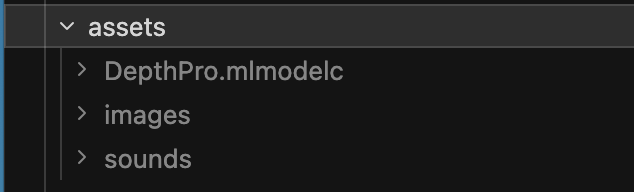
Next, we need to drag and drop the Expo plugin to the project's plugins folder. If you don’t have a plugins folder, create one in your project's root.

Finally, we need to add some minor configurations for the plugin into app.json/app.config.js. If you decide to store the model in another folder within your project, make sure you update the modelPath value in the plugin configuration.
"plugins": [
  [
    "./plugins/withDepthModel",
    {
      "modelPath": "./assets/DepthPro.mlmodelc"
    }
  ]
]
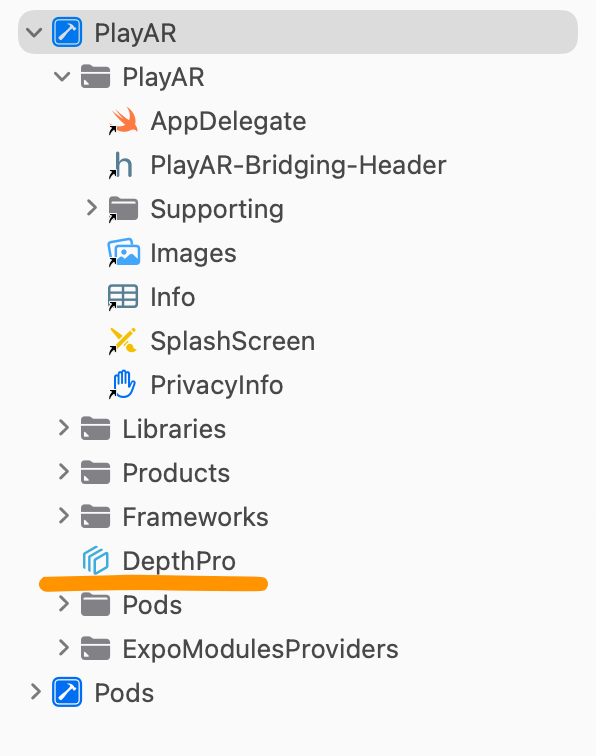
Now, when you run npx expo prebuild --clean you should find that the depth model has been bundled into your iOS project. To validate this, open Xcode and you should see this:
Without Using The Expo Plugin
If you don’t intend to use the Expo plugin, you’ll need to make sure that the DepthPro model is bundled into your iOS project manually.
The best way to do this is to open the Xcode workspace for your project. Once opened, drag and drop the DepthPro model into the root of your Xcode project.
Just remember, you will need to do this whenever you generate a new version of the iOS folder, and you’ll need to ensure the file is bundled in the iOS project you use for building your production app.
Get the ReactVision newsletter
Product announcements, including ViroReact, ReactVision Spatial, Editor and MCP updates, direct to your inbox. No spam, and you can unsubscribe at any time.