Meet the Studio Agent: From Idea to XR App
Building an XR scene usually starts with a blank canvas and a long list of small decisions. Which assets do you need, where do they go, what happens when someone taps them, how do you move between scenes. None of that is hard on its own, but it stacks up, and it sits between you and the thing you actually wanted to make.
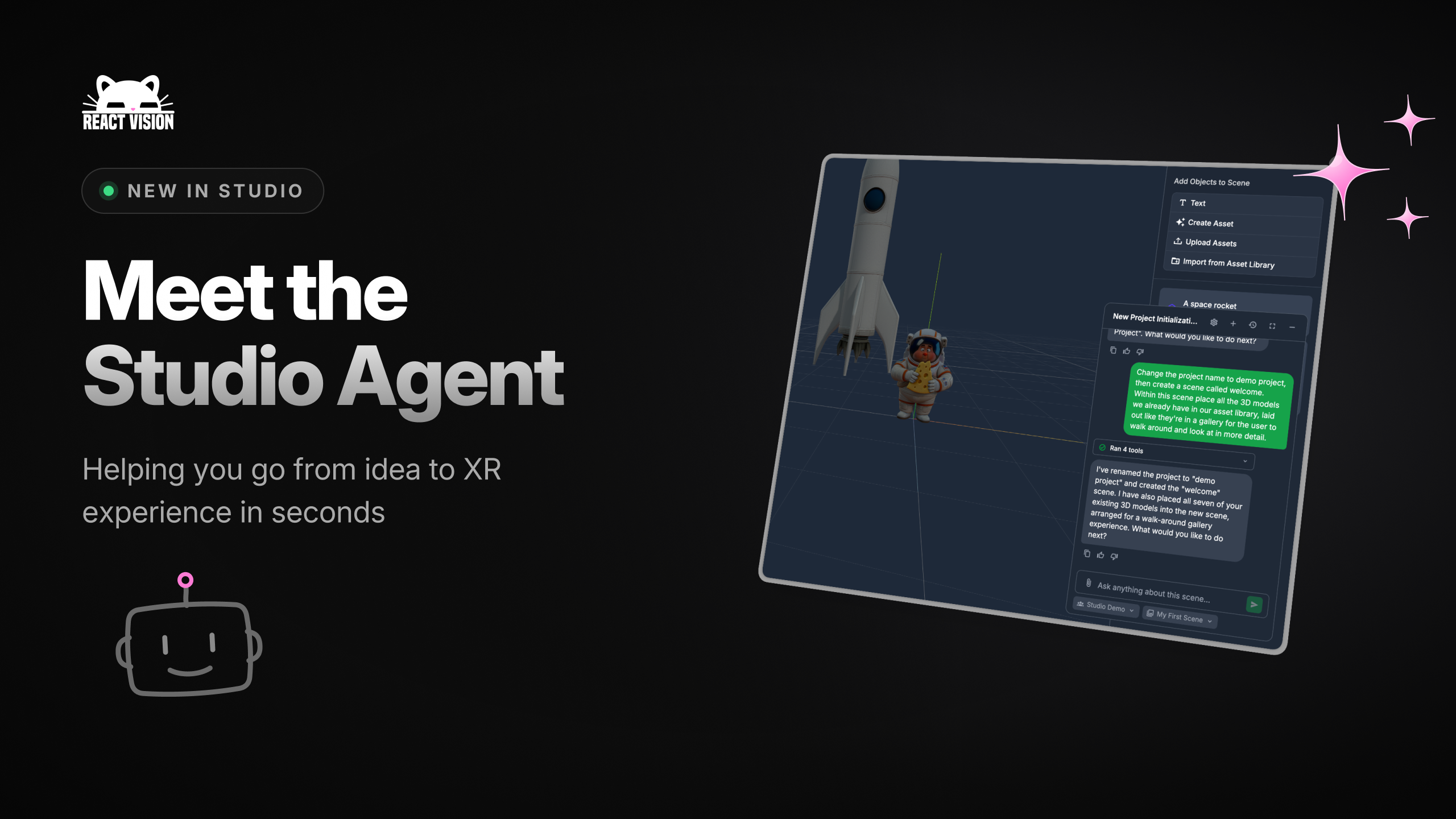
The Studio Agent is our answer to that. It is an AI agent built directly into ReactVision Studio, and it can take a plain-English description of an XR experience and turn it into a working project: scenes, assets, animations, interactions and all. You describe what you want to build, the agent builds it, and you open the result in StudioGo to test on a real device a few moments later.
Here is what it can do today.
It works across your whole project
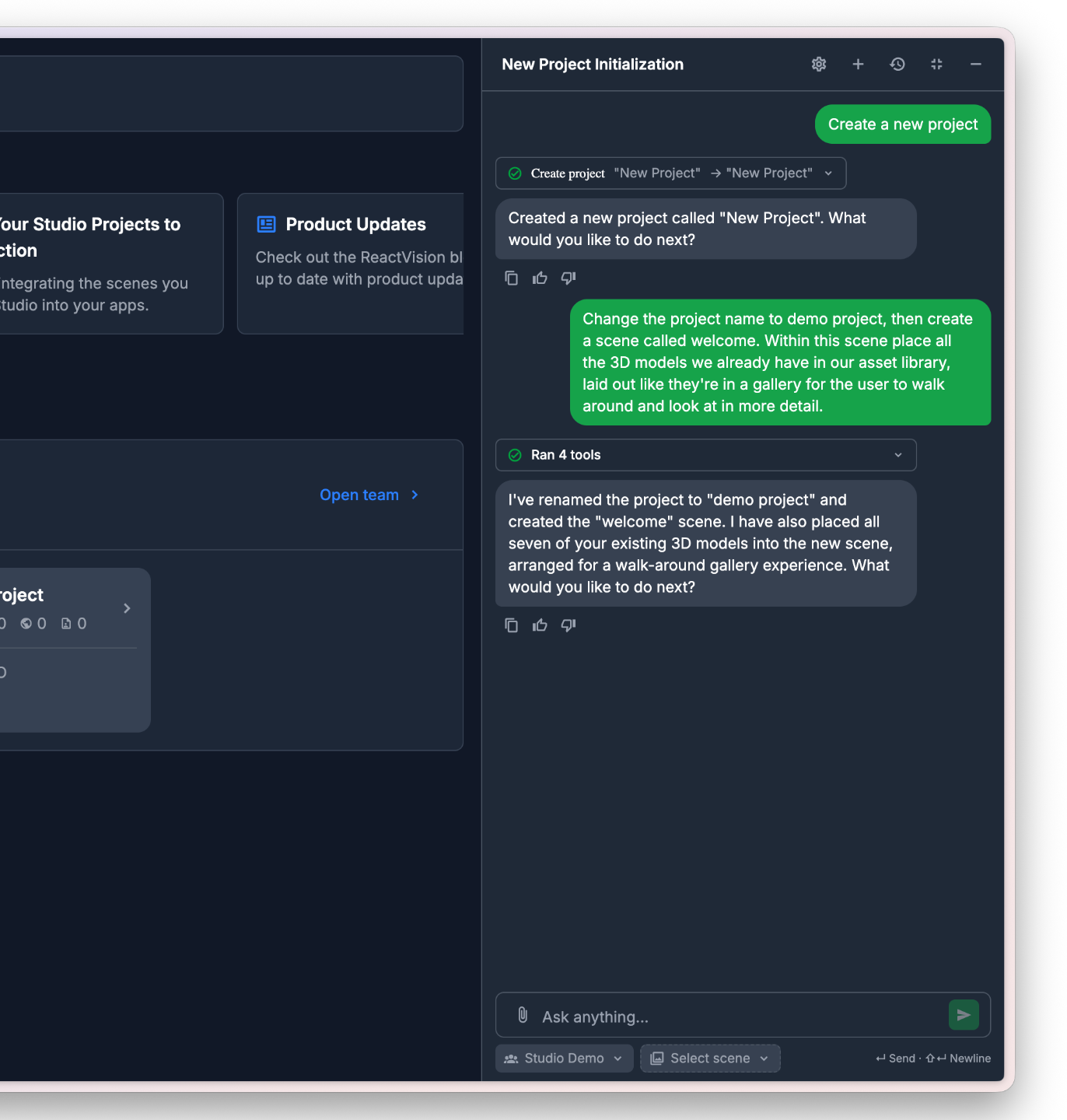
The agent operates at the level of your project, not just a single object. It can create new projects and scenes, list what you already have, edit existing scenes, and remove the ones you no longer need. Starting from nothing, you can ask it to scaffold a multi-scene experience and it will set each scene up for you.
It handles your assets, including generating new ones
Most XR projects live or die on their assets, so the agent covers three sides of this.
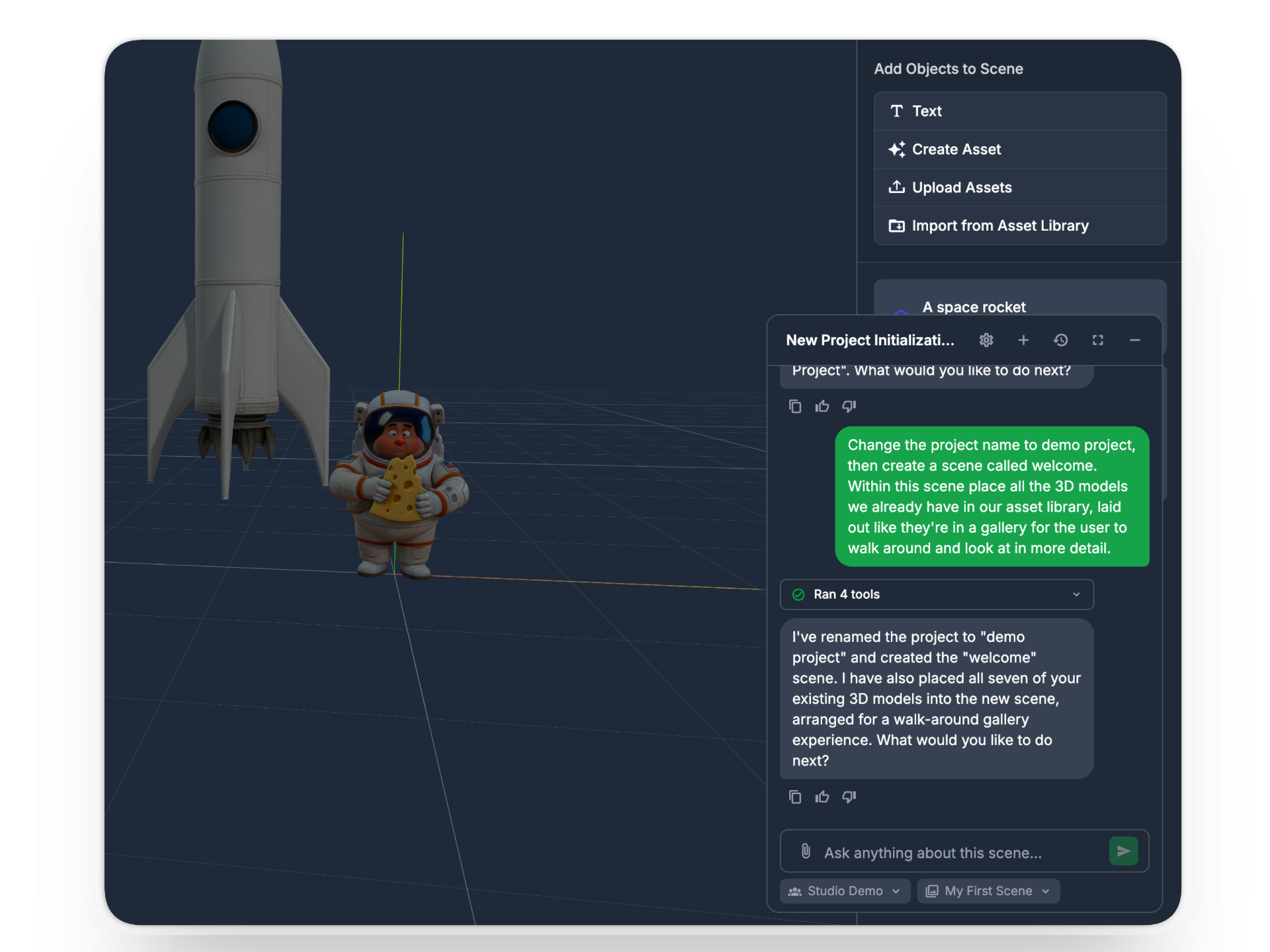
It can browse your team’s asset library, upload new assets, and delete ones you do not need. It can pull existing library assets straight into a scene and place them for you. And when you do not have the asset you need, it can generate one: images, or 3D models created from a text prompt or an existing image. Generation uses credits, so the agent always shows you the cost and asks for your approval before it spends anything.
It makes scenes interactive
A scene that just sits there is not much of an experience, so the agent can make things move and respond.
It can apply physics bodies to your 3D models, whether you want something dynamic that reacts to forces, kinematic that you drive yourself, or static that stays in place. It can build animations, from a simple hover or spin up to chained sequences of movement. And it can wire up triggers: bind an onClick to an object or an onSceneLoad to a scene, then have that fire an alert, navigate to another scene, or start an animation.
It can also place Geospatial Anchors, pinning a scene or object to a real-world latitude and longitude so your content shows up in a specific physical location.
One description, a whole experience
Put all of that together and you can describe a fairly complete experience in a single instruction. For example:
Create an XR application where a rocket takes off, and once the take-off finishes, open a new scene showing the solar system with the planets lined up so the user can walk around them.
From that one prompt, the agent will create the project, generate the assets it needs, build both scenes, add the take-off animation, and wire up the trigger that carries the user from the launch scene into the solar system. By the time it finishes you have a project you can open in StudioGo and test on a real device.
You stay in control
The agent is built to be safe to hand real work to. Anything destructive, such as deleting a project or removing a placement, and anything that costs credits, such as AI generation, goes through a confirmation step first. Nothing irreversible or billable happens until you approve it, so your project and your credits stay in your hands.
Try it
The Studio Agent is free to start using. Our free plan comes with 350 AI credits, and those credits work across both the Studio Agent and the ViroReact MCP, so you can put a real idea in front of it without paying anything up front.
If you have been meaning to build something spatial but kept bouncing off the setup, this is the easiest way in we have shipped yet. Open ReactVision Studio, tell the agent what you want to make, and see how far it gets.
Get the ReactVision newsletter
Product announcements, including ViroReact, ReactVision Spatial, Editor and MCP updates, direct to your inbox. No spam, and you can unsubscribe at any time.